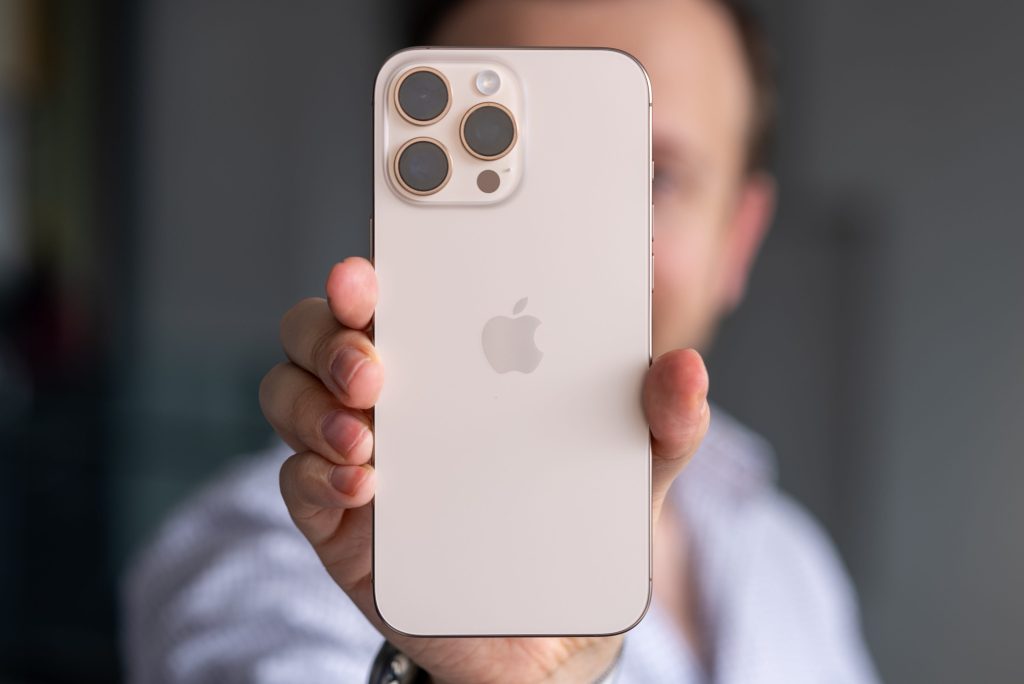
If your iPhone battery seems to drain faster than expected, the problem may not be the battery itself but hidden settings quietly working against you.
Apple builds powerful features into iPhones, but many of them consume energy even when you’re asleep. By adjusting the right settings, you can significantly improve your battery life overnight and wake up to a fully charged device.
Here are seven iPhone settings that can make a noticeable difference:
1. Turn Off Background App Refresh
Many apps continue updating in the background even when you’re not using them.
How to fix it:
Settings → General → Background App Refresh → Turn it off or select Wi-Fi only.
This prevents unnecessary activity while your phone is idle.
2. Enable Optimised Battery Charging
Your iPhone learns your charging routine and slows charging after 80% to reduce battery ageing.
How to enable:
Settings → Battery → Battery Health & Charging → Turn on Optimised Battery Charging.
This protects battery health while still ensuring a full charge by morning.
3. Switch Off Location Services for Non-Essential Apps
Apps using GPS in the background are major battery drainers.
How to adjust:
Settings → Privacy & Security → Location Services → Review apps and select While Using or Never.
Keep location access only for apps that truly need it.
4. Activate Low Power Mode Before Bed
Low Power Mode limits background processes, mail fetch and animations.
How to turn on:
Settings → Battery → Low Power Mode.
This is one of the fastest ways to conserve power overnight.
5. Disable Push Notifications You Don’t Need
Every notification wakes your screen and uses power.
How to manage:
Settings → Notifications → Review apps → Turn off alerts for non-essential apps.
Fewer alerts mean less screen activity and better battery retention.
6. Enable Auto-Brightness
Your display is the biggest battery consumer.
How to fix:
Settings → Accessibility → Display & Text Size → Turn on Auto-Brightness.
This ensures your screen only uses as much power as necessary.
7. Turn Off Wi-Fi and Bluetooth When Not Needed
If your phone is constantly searching for connections, it drains battery.
Quick solution:
Enable Airplane Mode or manually turn off Wi-Fi and Bluetooth if you don’t need them.
The post 7 iPhone settings that can dramatically improve battery life appeared first on Vanguard News.
